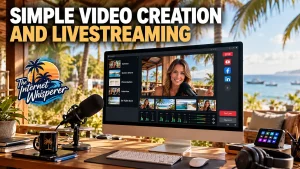
Simple Video Creation And Livestreaming:
Why I Recommend Ecamm
Quick Read TL;DR
Ecamm is one of those tools that makes video creation feel much less complicated. It is not just for livestreaming. You can use it to record videos, share your screen, create presentations, interview guests, run webinars, produce podcasts and stream to multiple platforms. I particularly like the way you can build scenes in advance and switch between them while recording or live. Start with the basics and add more as you need them. For Mac users who want a flexible video studio without a huge learning curve, Ecamm is definitely worth a look.
I like technology that makes complicated things feel simple.
Video creation can get complicated very quickly. Cameras, microphones, scenes, graphics, screen sharing, livestreaming, recording, guests and different social platforms can turn what should be a simple video into a mini production.
That is one of the reasons I have been a fan of Ecamm.
One Tool, Lots Of Possibilities
Ecamm is a Mac based video production studio that can handle livestreaming, recording and presenting from one place.
And that versatility is what I really like about it.
You can connect a webcam, DSLR or mirrorless camera, share your screen, add graphics and overlays, bring in guests, display comments and switch between different scenes while you’re live.
You can also record without going live.
That last bit is important.
Sometimes I don’t want to broadcast anything. I simply want to record a video, presentation or tutorial and deal with publishing it later.
Ecamm handles that too.
Livestreaming Without The Headache
Ecamm works with platforms including YouTube, Facebook, Instagram, LinkedIn, Twitch and others, with support for RTMP destinations as well.
It can also multistream to multiple destinations, depending on your setup and plan.
For someone creating content regularly, that can save a lot of messing around.
You can build your scenes beforehand and then switch between them during the production.
Camera on.
Screen share.
Picture-in-picture.
Presentation.
Video clip.
Back to camera.
It all becomes part of the same production rather than a collection of different tools.
It Is Not Just For Going Live
This is probably the part of Ecamm that gets overlooked.
Think of it as a video creation studio, rather than simply a livestreaming application.
You can use it for:
- YouTube videos
- Livestreams
- Video podcasts
- Tutorials
- Presentations
- Online meetings
- Webinars
- Product demonstrations
- Screen recordings
- Interviews
- Pre recorded content
And because Ecamm automatically records broadcasts locally, you also have the opportunity to repurpose that content later.
Ecamm Pro can take this even further with isolated audio and video recording, which can be particularly useful when you want to edit or repurpose a production.
Scenes Are A Big Deal
One of my favourite concepts in Ecamm is Scenes.
Instead of rebuilding your layout every time, you can create a scene for different situations.
For example:
Talking Head
Your camera, name and branding.
Screen Share
Your screen with your camera sitting in the corner.
Interview
You and a guest side by side.
Presentation
Slides taking centre stage with your camera in a smaller window.
Be Right Back
A simple branded holding screen.
Once you have these created, switching between them becomes incredibly easy.
That is where the software starts to feel less like technical video software and more like having your own little production studio.
And You Don’t Have To Start Complicated
This is probably my biggest recommendation.
Don’t try to use everything.
Start with a camera and microphone.
Create two or three scenes.
Learn how to switch between them.
Then add the clever stuff as you need it.
Ecamm gives you plenty of room to grow without forcing you to learn everything on day one.
That makes a big difference if, like me, you prefer KISS — Keep It Super Simple.
Play
Pause
Backward 10s
Play
Pause
Forward 10s
Unmute
Mute
Settings
Announcements
Keyboard Animations
Enter PiP
Exit PiP
Enter Fullscreen
Exit Fullscreen
My Take
There are plenty of video tools available.
What keeps Ecamm on my list is the combination of simplicity and flexibility.
I can use it for something as straightforward as recording a quick video, then turn around and use the same software for a proper livestream with cameras, guests, screen sharing, graphics and multiple destinations.
That’s a pretty useful bit of kit.
If you’re a Mac user and video is becoming part of what you do, I’d definitely put Ecamm on the list of tools worth investigating.
You can see exactly what it can do at Ecamm.
There is also a 14 day free trial with no credit card required, so you can actually try it rather than simply taking my word for it.
And that’s usually my preferred way of evaluating software.
Try it. See if it makes your life easier. Then decide.